After putting in a lot of time and hard work to create content for your website, it can be devastating to lose your files. Performing backups helps to restore sites that have been compromised by corrupted files or security vulnerabilities or sites that have been deleted. Maintaining regular backups will help prevent the loss of valuable files and databases. If you want a broader walkthrough before using cPanel, this full website backup step-by-step guide explains what a complete backup includes and why it matters for website owners.
How to create and download full Backups in cPanel
There are different approaches for backing up websites. Luckily, the cPanel backup interface allows you to easily generate and download a full backup of your website, including files, emails, and databases. If you’re still asking the basic question, “How do I backup my website?”, this beginner guide on how to back up your website gives a simpler overview before you follow the cPanel steps below.
How to create a full cPanel Backup
-
Login to your cPanel.
-
Under the Files section, click on the Backup Wizard icon.
-
In the Back-Up section, click on the Backup button.
-
You will see the options to either create a Full Backup or a partial backup. Once the backup has been created, remember that downloading it is only half the job. You should also know how to restore your files if your website breaks, gets deleted, or needs to be recovered after a failed update.
-
Choose the backup destination. In our case, we will back up the account in the Home directory of the server.
-
Enter your email address if you want to receive an email notification after the backup is complete. Alternatively, you can check the Do not send an email notification of backup completion box.
-
Click the Generate Backup Button to proceed.
-
You will see a "Full backup in progress" message. Wait for the backup to finish.
-
Download the file located in your /home directory from your cPanel. It will begin with backup and include the date. i.e.., backup-14.02.2021_15-51-32_example.tar.gz
How to download the Full Backup
- Under the Files tab, select Backups.
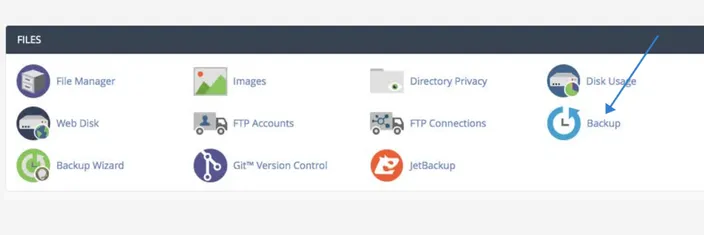
-
Click on the Download a Full Website Backup button.
-
Click the link for the backup files you want to download under Backups Available for Download.
-
Select the destination where you would like to save the backup on your computer.
You will now have successfully backed up your website files by downloading a full backup in cPanel. Even by taking extreme measures to prevent online data loss, you can not eliminate the risk of something going wrong completely on your website. Therefore, it's essential to always have a recent, full backup of your site in the event you need to restore your website. If you need to recover a full account or specific website files, follow this guide on how to restore full account and file backups via JetBackup. And if you only need specific items instead of a full account restore, this guide explains how to download database and email files in JetBackup for more targeted backup recovery. We have all the tools you need to backup your website. We can assist in the backup creation if you are currently using a control panel that has the Backup Wizard. If your hosting account uses DirectAdmin instead of cPanel, the process is different. You can follow this guide on how to create and restore backups in DirectAdmin instead. Plus, we also help with cPanel to cPanel Backup when migrating your website files. In case of any questions, our support team is readily available to assist you.