Directadmin File Manager
Under the File Manager section in your DirectAdmin, you can manage files on your server via FTP(File Transfer Protocol), including bulk files uploads, editing files, and changing file permissions. The DirectAdmin panel makes managing files smoother with easy navigation for accomplishing all the most common file-related tasks. In this tutorial, we will navigate the directadmin file manager section and complete basic file management tasks. Create a New Folder/File To create a new folder, follow these steps:
-
In the directadmin File Manager window, click the NEW+ icon on the top right bar area.
-
On the dropdown menu, click on +Folder.
-
Type the name of the new folder in the text box that shows up on the screen.
-
Then click Create to set up a new folder in File Manager.
To create a new file, follow these steps:
-
In the File Manager window, click the Text File button. A couple of options will show up on the screen. Plain text, Javascript, CSS, PHP, Markdown, Other.
-
If your Text File does not fall in any of the options outlined, click on Other.
-
Type the name of the new file in the text box that shows up on the screen.
-
Click Create to set up a new file in File Manager.
How to Upload Files in DirectAdmin DirectAdmin allows you to upload and manage files on your websites, such as video or images. Follow these steps to upload files on your domain; 1. Log in to DirectAdmin. 2. Under System Info & Files, click on File Manager.
3. On the left-hand side of the File Manager, click on Domains.
4. Then select your domain name and the public_html folder. 5. Click on the New+ option on the top bar area and then go to Upload Files.
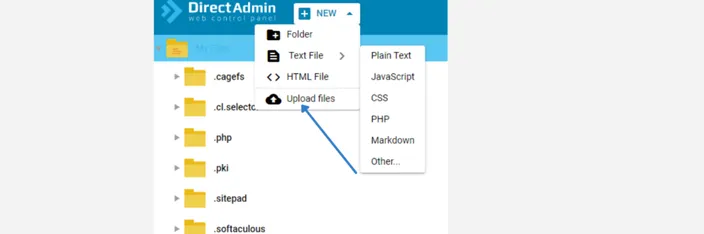
6. Drag and drop your file on the new window that appears on the screen. Or select it from your PC.
7. Then click on the Upload button.
8. You will see a tick on the window on the screen after the file upload is complete.
9. The uploaded file will be in the public_html folder and successfully uploaded to your domain name. Need any help managing files in DirectAdmin? Contact us via support@hostafrica.com or live chat to speak to our support team.